From paper to slides

Three ways to build a deck, and an AI one that says only what the paper says

Niccolò Salvini, PhD

IA@UNIPG · Incontro 3, Ricerca e IA · Lab 3 SSH, Scrittura accademica e presentazioni · Centro Linguistico di Ateneo

29 September 2026

Who I am

Niccolò Salvini, PhD · Adjunct Professor

  • Economics, Florence
  • MSc, Statistical and Actuarial Sciences, Milan
  • PhD, Healthcare Data Science, Rome
  • Founder, Intuo: data pipelines and AI for companies
  • Adjunct Professor: Università Cattolica, and ESE

The next 55 minutes

0–12 Three ways to build a deck PowerPoint · LaTeX Beamer · HTML
12–16 Gemini Notebook in one minute, round 1 one source, one prompt
16–30 Tricks, while deck 1 is generating citations, rules, the real picture
30–33 Round 2 more sources, the UNIPG theme
33–50 Check the theme, Rivedi slide by slide, export one slide, one instruction
50–55 Three rules to take home

One article for everyone: Van Ooijen, Resilient Matters: The Cathedral of Syracuse as an Architectural Palimpsest, Architectural Histories, 2019.

Part 1 Three ways to build a deck

Three families, one question: who decides the layout?

Slides app LaTeX Beamer HTML
You write in the slide itself .tex code Markdown
You get .pptx → PDF PDF a web page
The theme lives in the master slide a .sty file a .scss file
Maths, references painful native good (KaTeX, BibTeX)
Video, live charts, maps video only almost none everything a browser shows
Good for quick decks, templates you are given papers, formulas, conferences in STEM teaching, interactive material

Tools: PowerPoint, Keynote, Google Slides · Beamer on Overleaf · Quarto + reveal.js, Slidev, Marp.

You are looking at HTML right now

This deck is a Markdown file rendered by Quarto into a reveal.js web page.

## You are looking at HTML right now

This deck is a **Markdown file** rendered by...

- a bullet is a dash
- a picture is ![](img/photo.jpg)

quarto render deck.qmd → deck.html → open in any browser, or print to PDF.

The look is one file. unipg.scss holds four colours read from unipg.it and one font:

#27348B blue #E30613 red #8D8F95 grey #E8E8E8 light grey Roboto

Change the file, every slide changes. Keep this in mind: in Part 2 we give the same five values to Gemini.

A real course deck, mapped to its technology
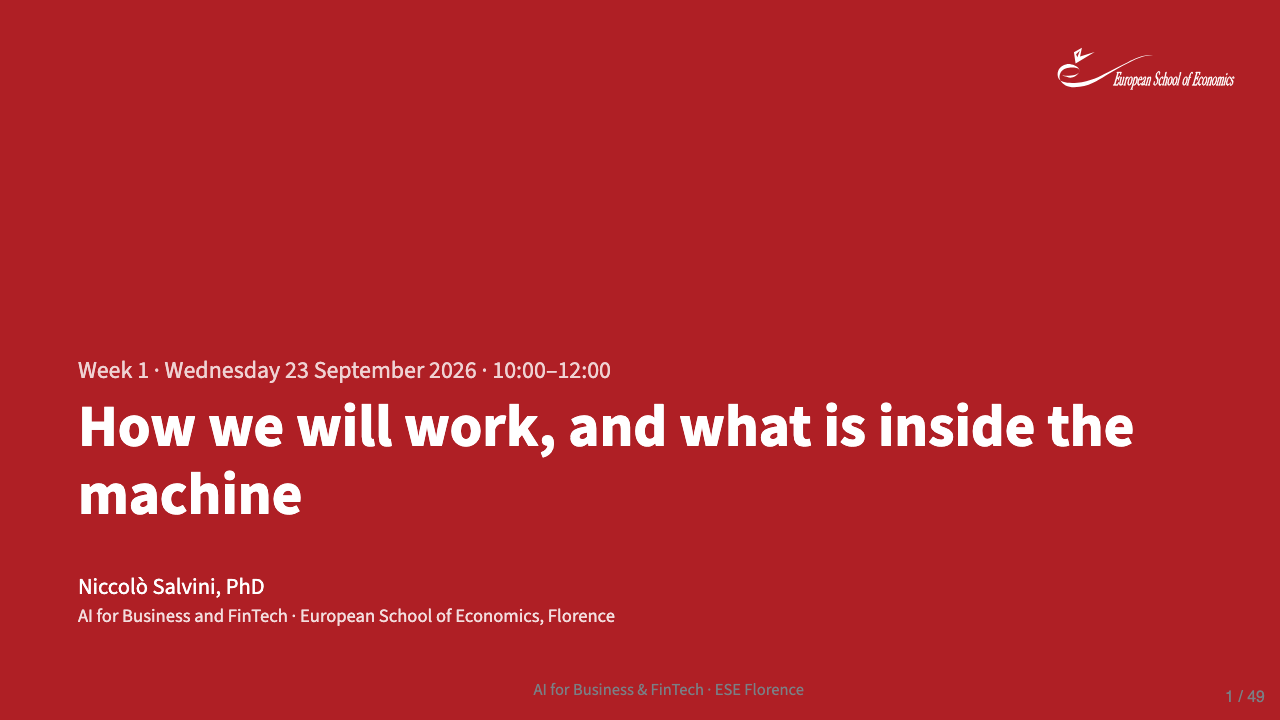
Click to open it live: 49 slides, Markdown + manim + SVG

What you see What makes it
text, columns, tables Markdown → Pandoc
slides, transitions, speaker view reveal.js
animations manim (Python) → MP4
charts, diagrams Python → SVG
colours, fonts one .scss file
hosting GitHub Pages

Inside an HTML slide you can put anything a browser shows

A manim animation, embedded as a video

A live map: the Cathedral of Syracuse, today’s article

Also: an interactive chart, a web page, a form, a notebook, a 3D model. In a PDF none of this moves.

The LaTeX route: Beamer

\documentclass[aspectratio=169]{beamer}
\usetheme{default}          % or the conference .sty
\definecolor{unipg}{HTML}{27348B}
\setbeamercolor{frametitle}{fg=unipg}

\begin{document}
\begin{frame}{Architectural resilience may rely
              on continuous adaptation}
  \includegraphics[height=.6\textheight]{fig3}
  \href{https://doi.org/10.5334/ah.65}{Van Ooijen 2019}
\end{frame}
\end{document}

Why people use it: formulas, \cite, the conference asks for it, the output is one stable PDF.

What you can embed: TikZ and pgfplots drawings, code listings, links, step-by-step overlays (\pause, \only), frame-by-frame animation with the animate package.

What you cannot really embed: video, live maps, anything interactive.

Overleaf compiles it in the browser. Many conferences give you a .sty theme: that file is the “theme” we talk about next.

Every route has the same idea: the theme is one place

Route Where the look lives What you change for a new conference
Slides app slide master / template open their .potx
Beamer .sty or preamble \usetheme{conf}
HTML .scss four hex codes and a font
Gemini Notebook the prompt four hex codes and a font, written in words

An AI tool has no theme file. The prompt is the theme file.

Part 2 One article, two decks, one tool

One rule for the hour

We work only on what is uploaded. If the model says something and cannot show where it is in the text, for us it does not exist.

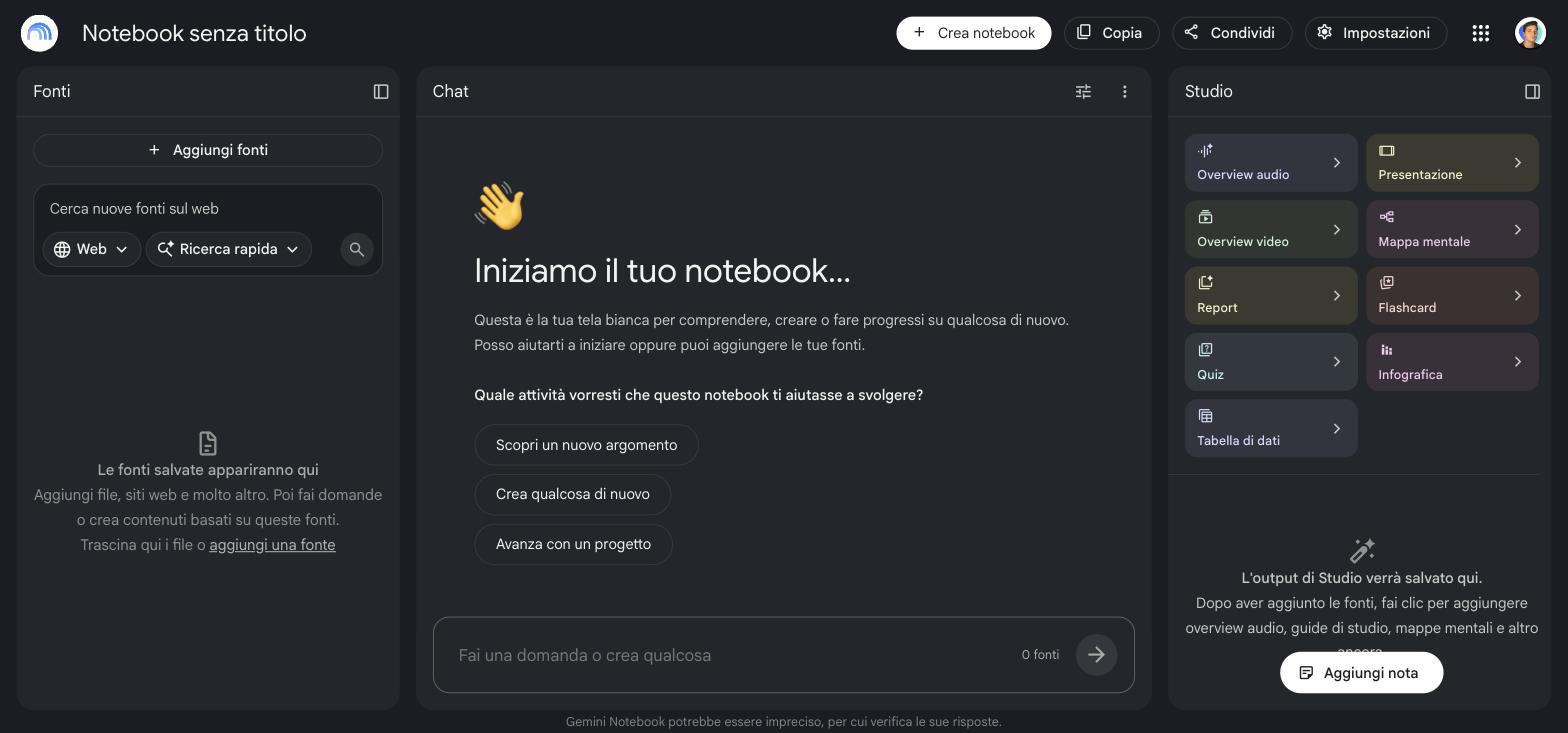
The tool in one minute

  • Sources, left: the only thing the model reads
  • Chat, centre: where you check, every sentence has a number
  • Studio, right: where decks are made

notebook.google.com, with your @unipg.it account.

The source: the PDF, checked in 30 seconds

Before uploading any PDF: select a line, copy it, paste it somewhere.

On screen What the machine reads
Architectural Histories $UFKLWHFWXUDO +LVWRULHV
Resilient Matters: The Cathedral… Resilient Matters: The Cathedral…

That is today’s article: the journal logo is unreadable, the body text is fine.

If the text comes out garbled, the model will still answer, with something plausible. It never says it could not read.

Today: Add source → Websites → paste the direct PDF link:

journal.eahn.org/article/7590/
galley/21444/download/

The article page itself imports badly (menus, cookie banners). The direct PDF link imports clean.

Two decks, one resource at a time

Round 1

Sources: the article, nothing else

Prompt B: content rules. Only what is in the text, titles as claims, keep the author’s caution, no generated images, last slide = limits.

→ deck 1

Round 2

Sources: the article + deck 1 (if it passed the check) + real photos of the cathedral

Prompt C: B + keep deck 1’s structure + use only the uploaded photos + the UNIPG theme.

→ deck 2

One change per round. The third generation of the day stays in your pocket. Deck A, the one-line prompt, you only see on my screen: no need to spend a generation on it.

Three decks a day

3

presentations per account per day, measured this morning on @unipg.it

  • The 4th attempt: “Hai raggiunto il limite giornaliero di slide”. It did not come back at 9:00.
  • A deck takes about 7 minutes.
  • Rivedi does not count: ~2 minutes for one slide, ~15 for all seven.
  • Plan: two generations, one spare. Everything else is Rivedi.

Everything you need to copy is on one page

niccolosalvini.github.io/unipg_ai_workshop

  • the direct link to the article, and the two photos
  • prompts B and C, with a copy button
  • the five questions for the comparison, Rivedi examples
  • these slides, and the decks generated this morning

Round 1 · launch now: Studio → Presentation → customise
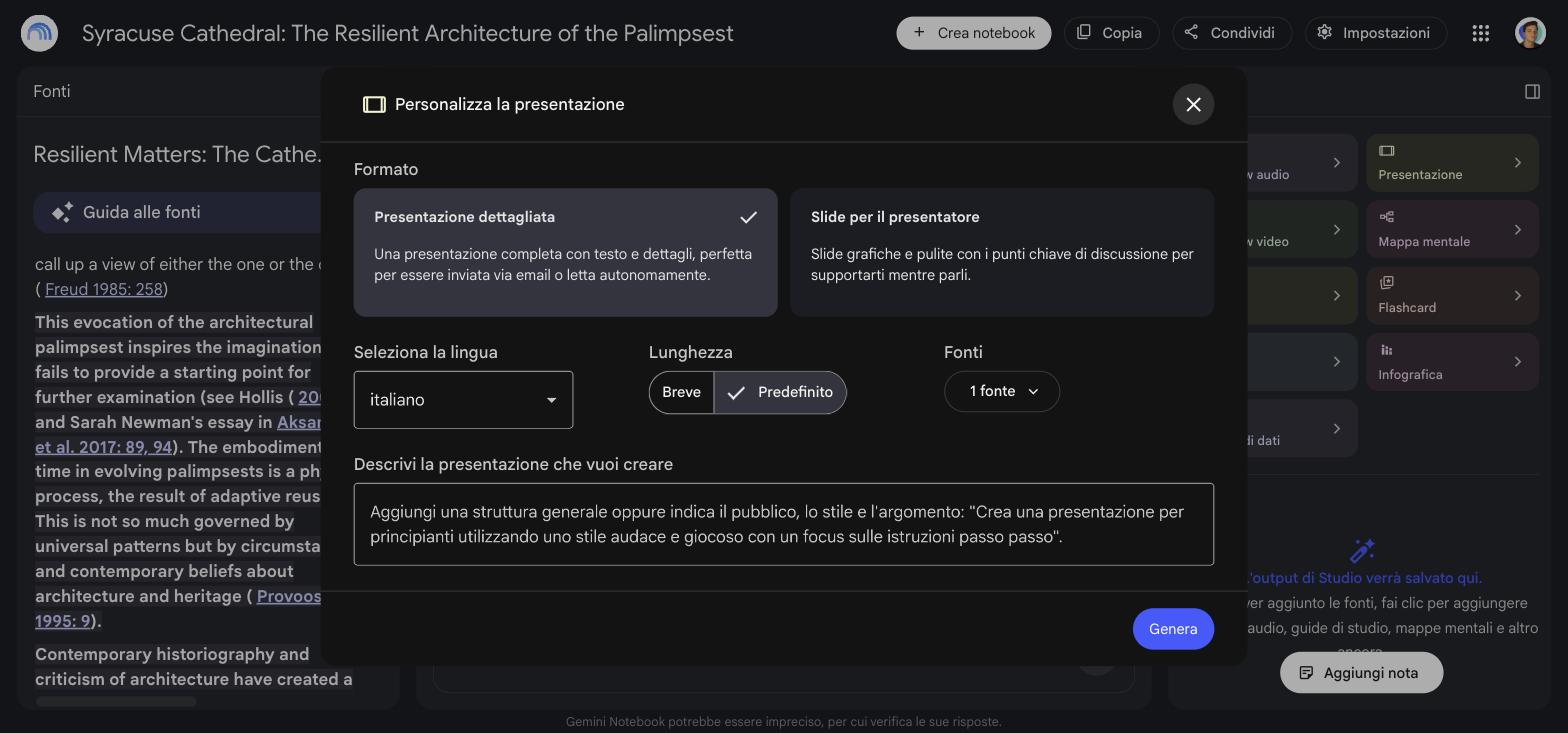
1 Format: Presenter slides, the right-hand card

2 Language: English

3 Sources: only the article

4 Paste prompt B → Genera

The dialog forgets format and language every time. Check them before Genera.

Then close it. Don’t watch the spinner: 7 minutes of tricks start now.

Part 3 Tricks, while your decks are generating

Trick 1 · The number is the only thing that lets you trust
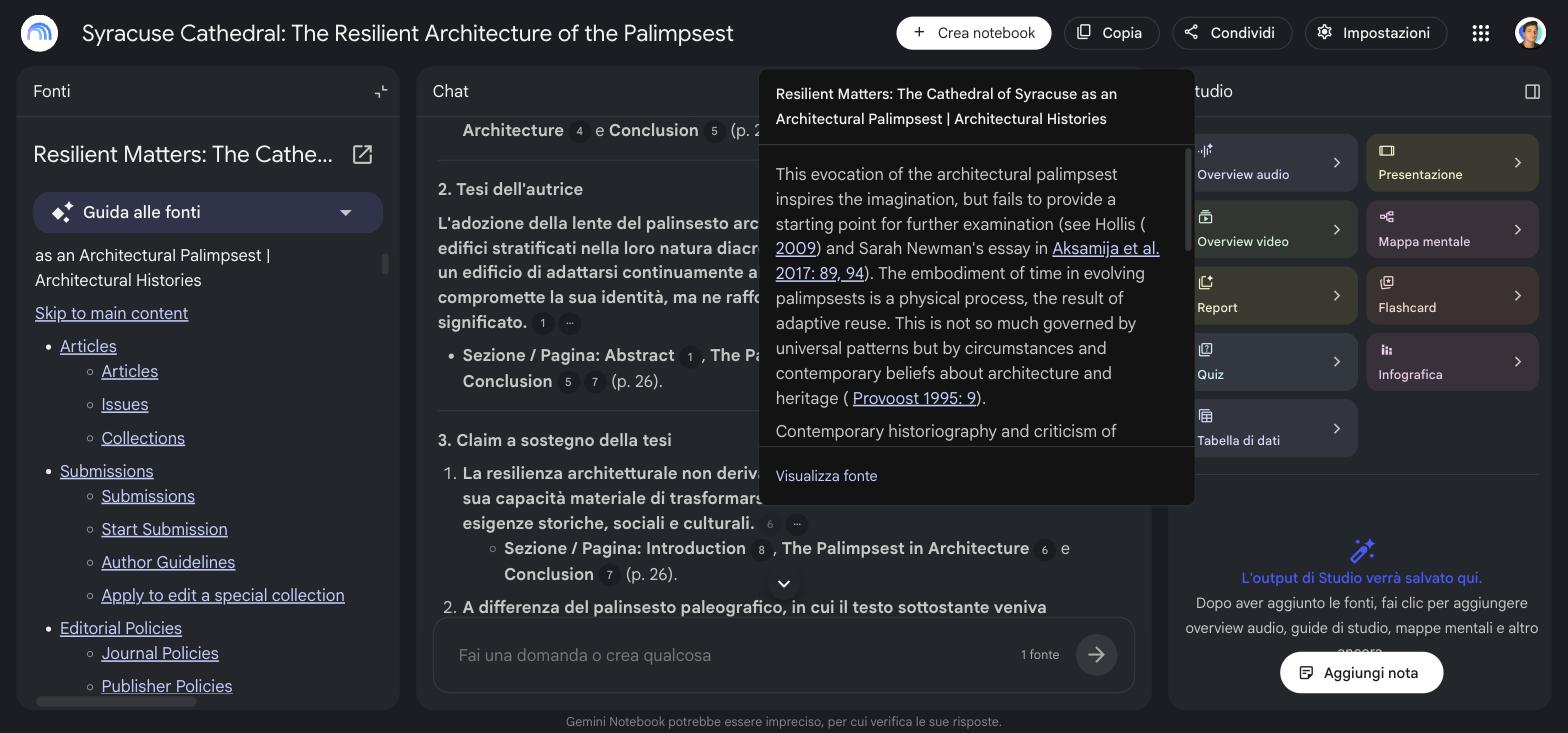
In the chat, every sentence carries a number. Click it: the passage of the article opens.

If the passage says less than the sentence, the sentence does not go on a slide.

Ask in chat: “What are the three claims the thesis rests on? Cite the page for each.” Then click every number.

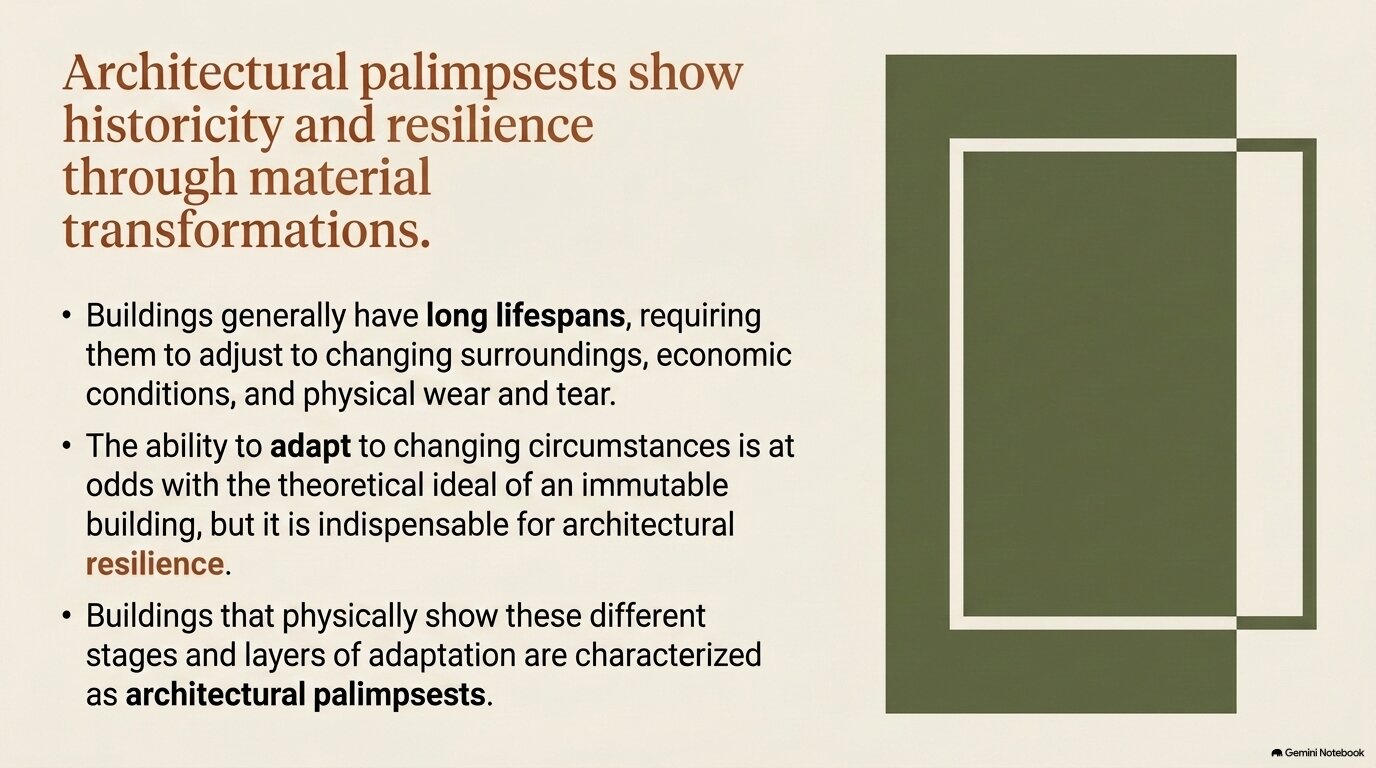
Trick 2 · Without rules, the tool illustrates. Here is deck A.
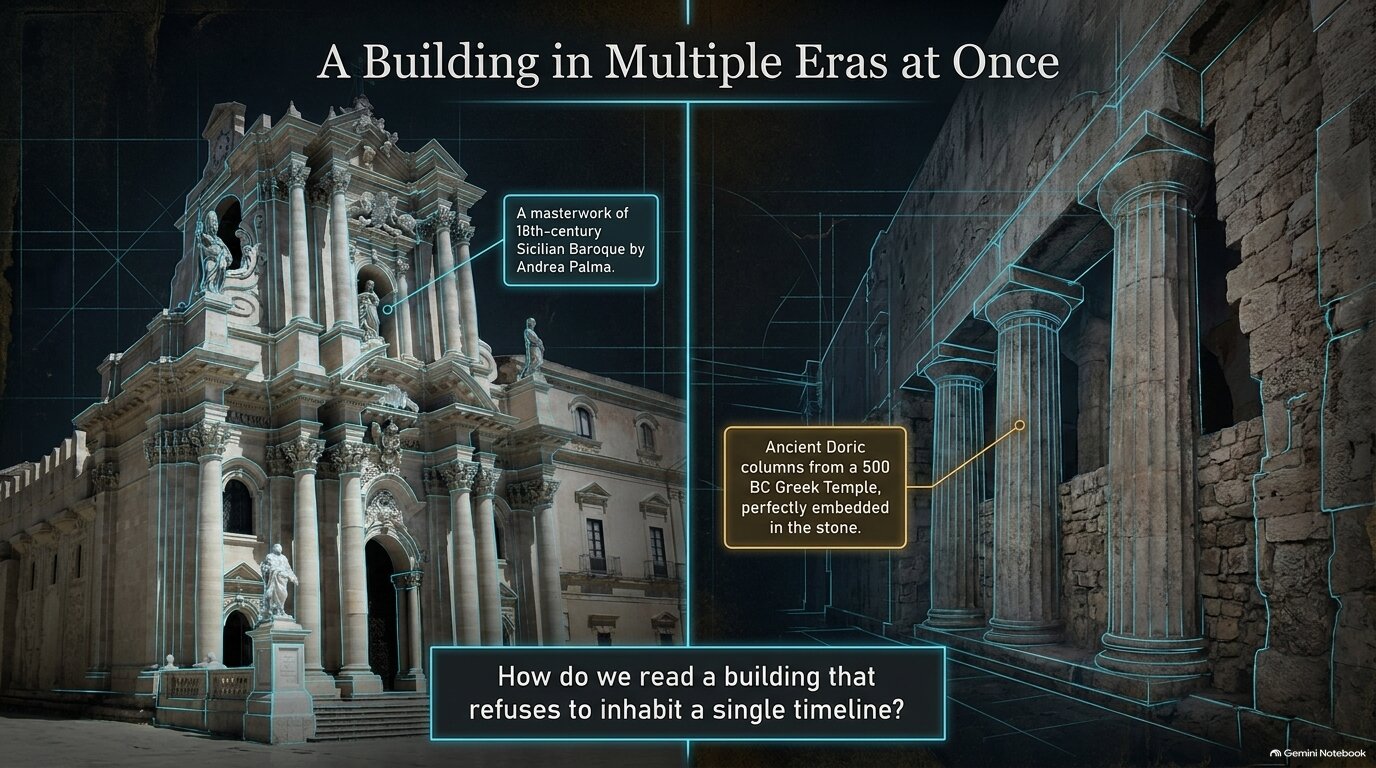
The captions are right: 500 BC, Andrea Palma, 18th-century Baroque are all in the article.

The picture is not. It is a generated cathedral: a document of a building that does not look like that.

In a talk, a generated photo of a real place reads as evidence.

Trick 3 · Rules work on content. Here is deck 1.
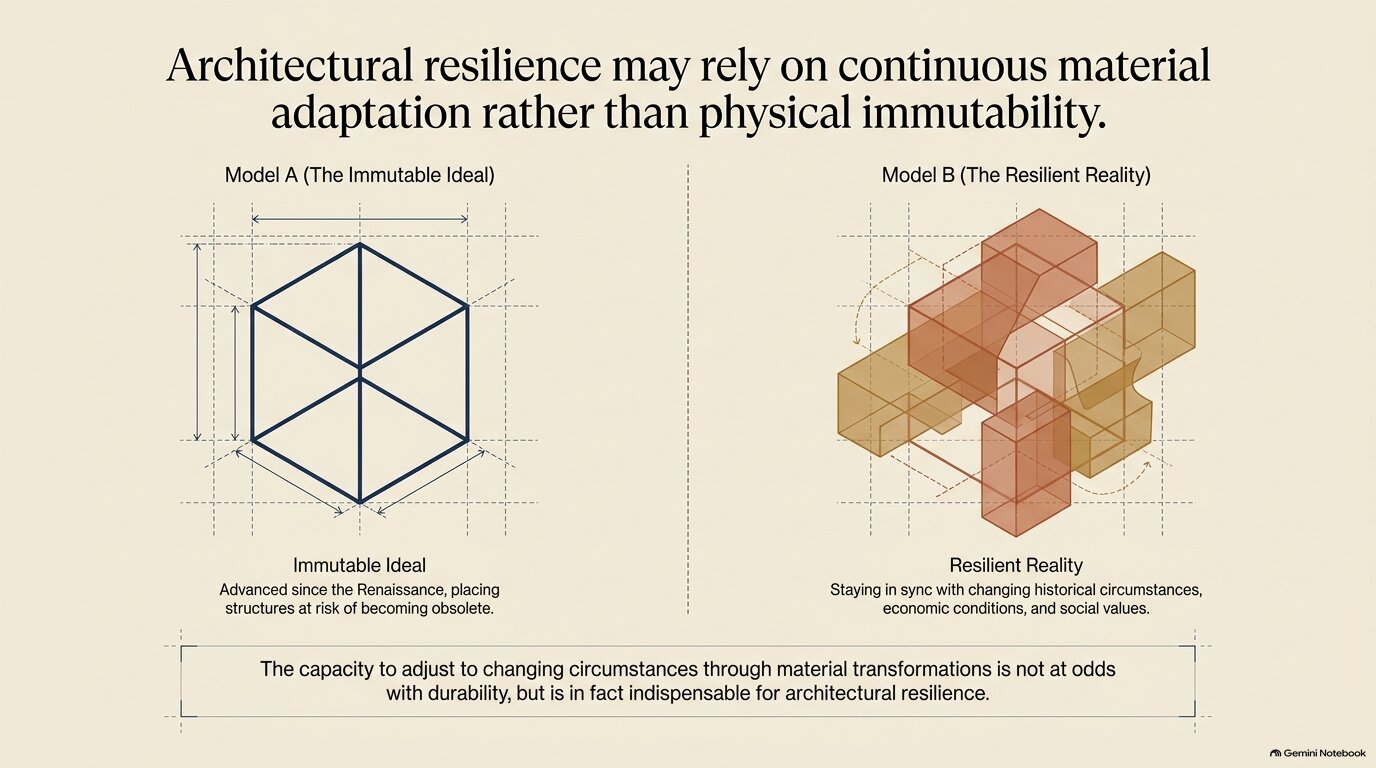
  • the title is a claim, not a topic
  • it keeps the author’s caution: “may rely”
  • diagrams instead of photos
  • the last slide is the author’s limits

Same article, same tool, ten more lines of prompt.

Be honest about this: the same prompt never gives the same deck

Prompt B, @unipg.it account, 08:27
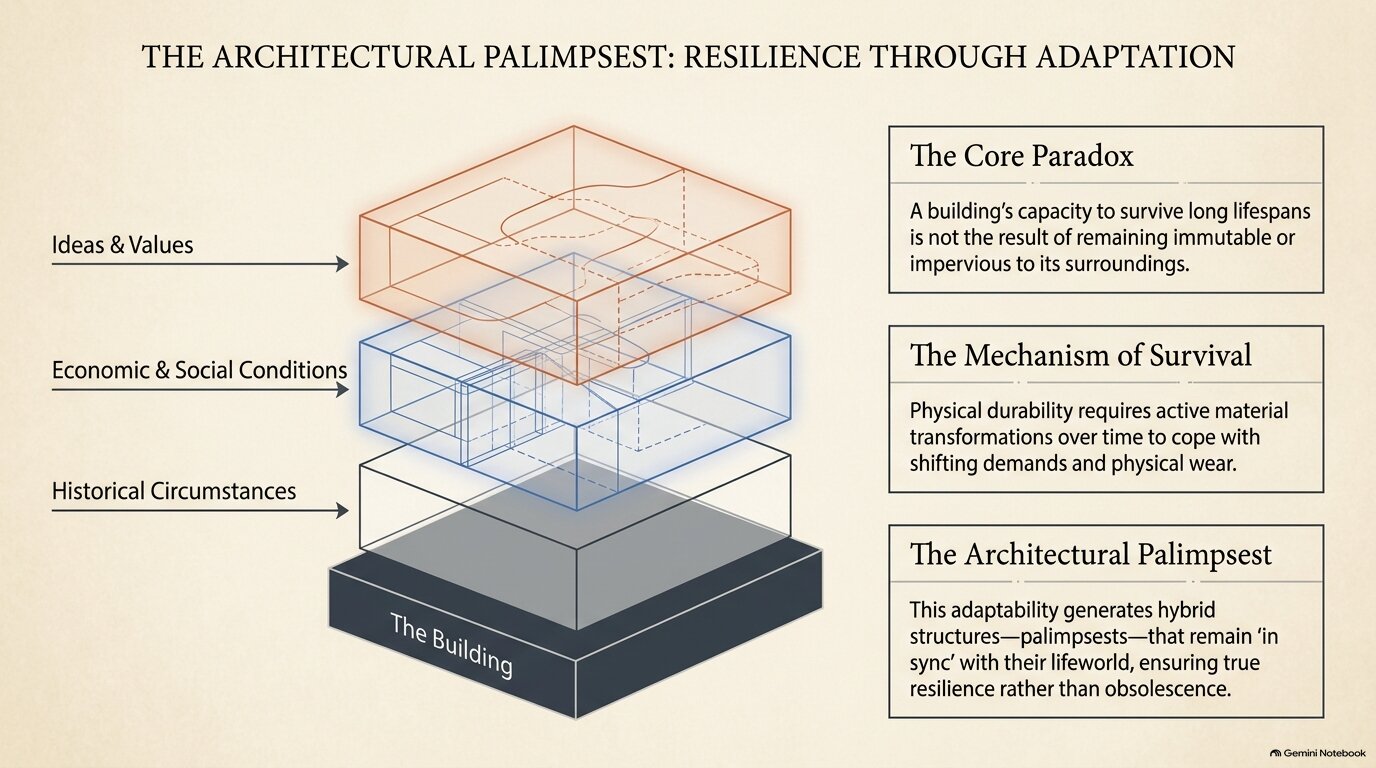
Prompt B, identical, another account, 08:20. The title is a topic label again.

Style you can steer. Structure you cannot reproduce. Every generation is a new draw. That is why we compare decks and keep slides, instead of hoping the next run is the right one.

Trick · A deck that passed the check becomes a source

  1. Deck 1 ready → read every slide with the five questions
  2. If it holds: ⋮ → Download → PDF
  3. Add sources → Upload file → the PDF
  4. In prompt C: “keep the order and the titles of the uploaded deck”

Round 2 starts from something you already checked, instead of from a new draw.

Once uploaded, the deck is a source: the model treats it as true as the article. Upload it only after you checked it, or its mistakes come back with a citation number.

Trick · Give it the real picture instead of letting it draw one
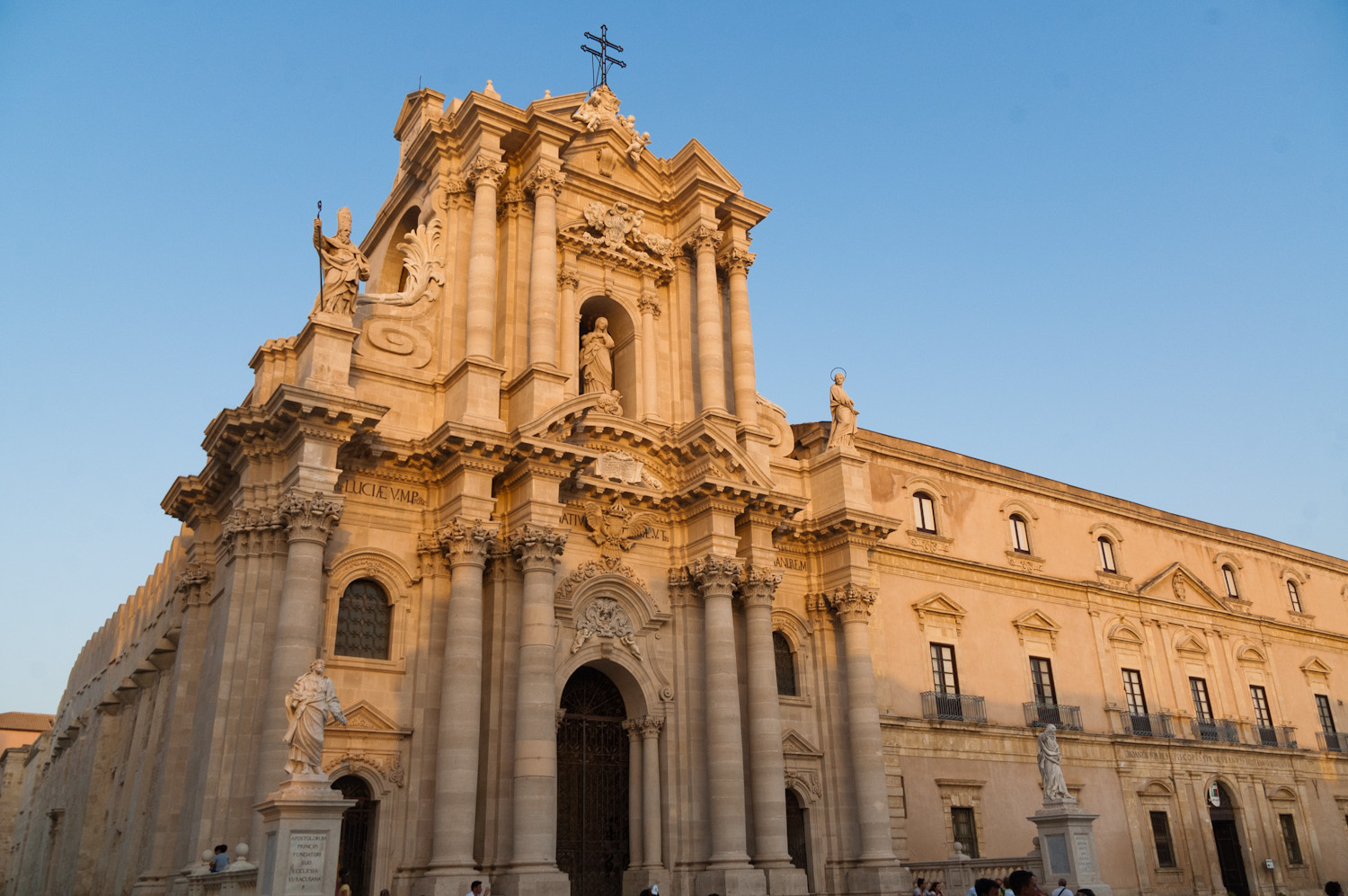
Façade, Guillaume, CC BY 2.0, Wikimedia Commons

Deck A drew a cathedral. The real one is on Wikimedia Commons, with a licence.

  • Add sources → Upload file → the photo. An image cannot be added by URL: the link fails.
  • The photo works only in a new generation: round 2, prompt C.

We tried the shortcut this morning: photos uploaded, then Rivedi on deck A “use the uploaded photograph instead of the generated image”. Failed twice. Rivedi works only on the sources the deck was born with: the screen says “in base a 1 fonte”.

Round 2 · launch: more sources, prompt C

1 Add sources: deck 1 PDF (if it passed), the two photos

2 Studio → Presentation → Presenter slides, English

3 Sources: all of them

4 Paste prompt C → Genera

Prompt C = prompt B, plus:

keep the order and titles of the uploaded deck · for the cathedral use only the uploaded photographs, credited · UNIPG theme: #27348B, #E30613, #8D8F95, #E8E8E8, Roboto, a thin blue rule under each title

Trick 4 · A theme is hex codes and a font, not adjectives

Deck 1 (prompt B)
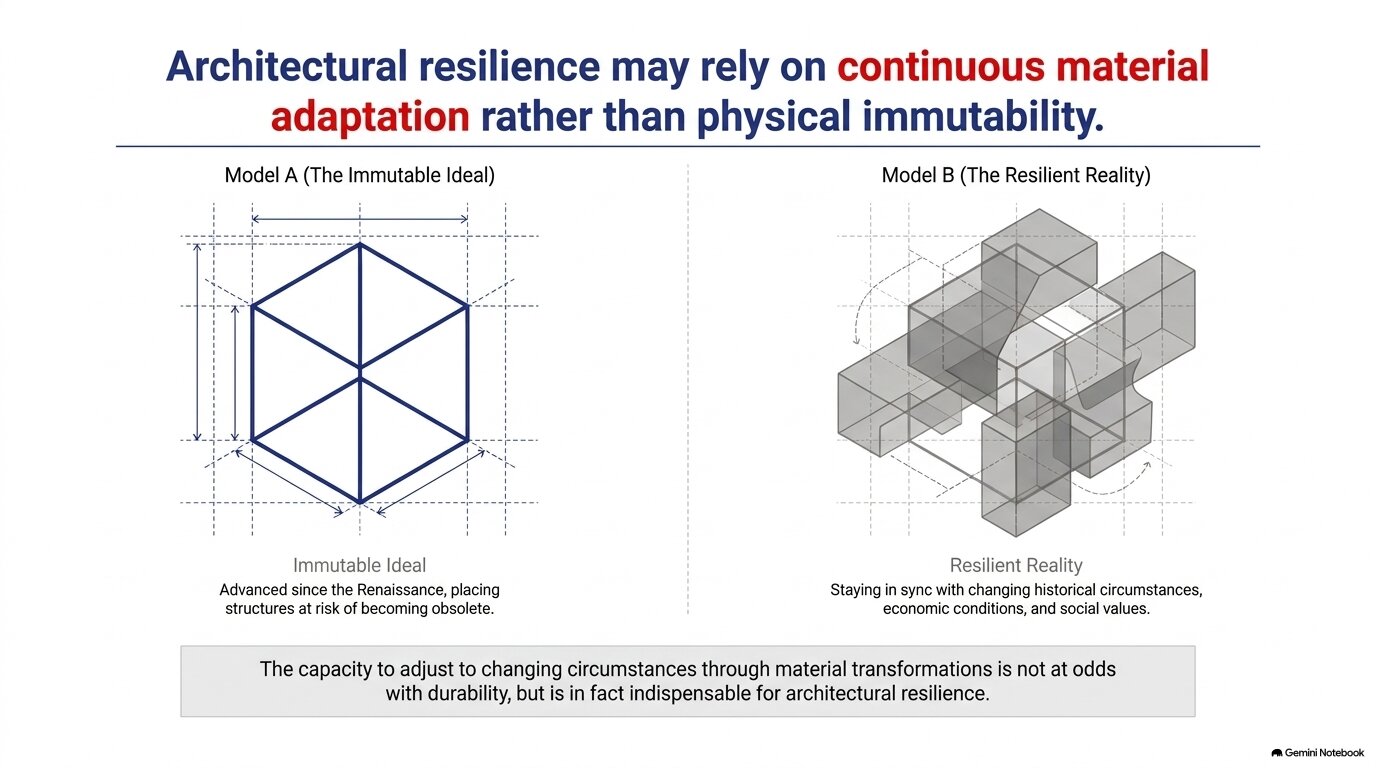
The same deck + the UNIPG theme: #27348B, #E30613, #8D8F95, #E8E8E8, Roboto, a blue rule. Same words.

“Elegant, institutional, blue” gives a different blue every time. #27348B, Roboto gives the same one. Your conference’s codes are in its template (.potx, .sty), its website CSS (Inspect), or its logo .svg (fill="#…").

Check that the theme held on every slide, not only the first
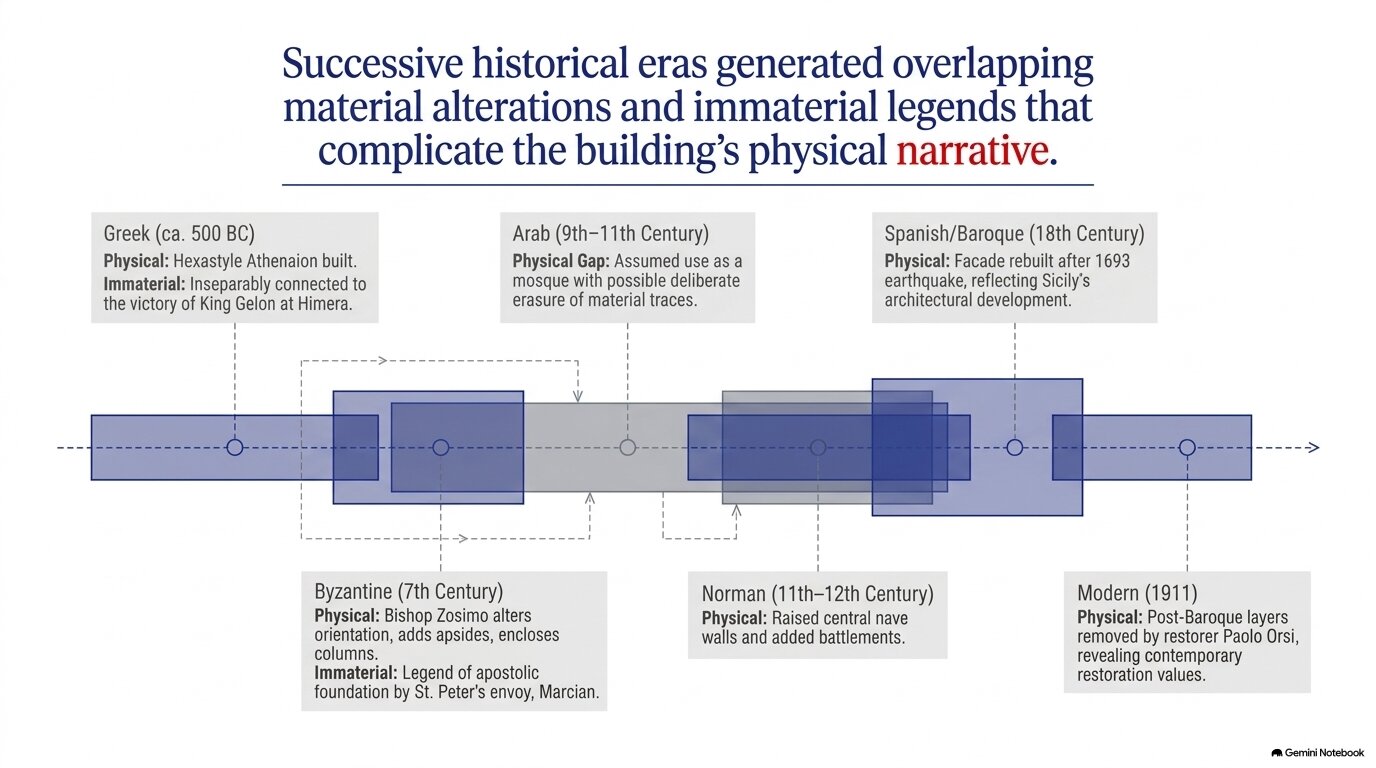
Slide 4 of the same deck

Slides 1, 2, 3, 5, 6, 7: blue sans-serif titles, one red word.

Slide 4: serif, black title, as before the theme. The theme did not reach it.

Also: grey boxes in the top-right corner, where we asked for empty.

Fix: Rivedi on slide 4 alone, same instruction. One slide, two minutes.

Trick 5 · Read the text inside the picture
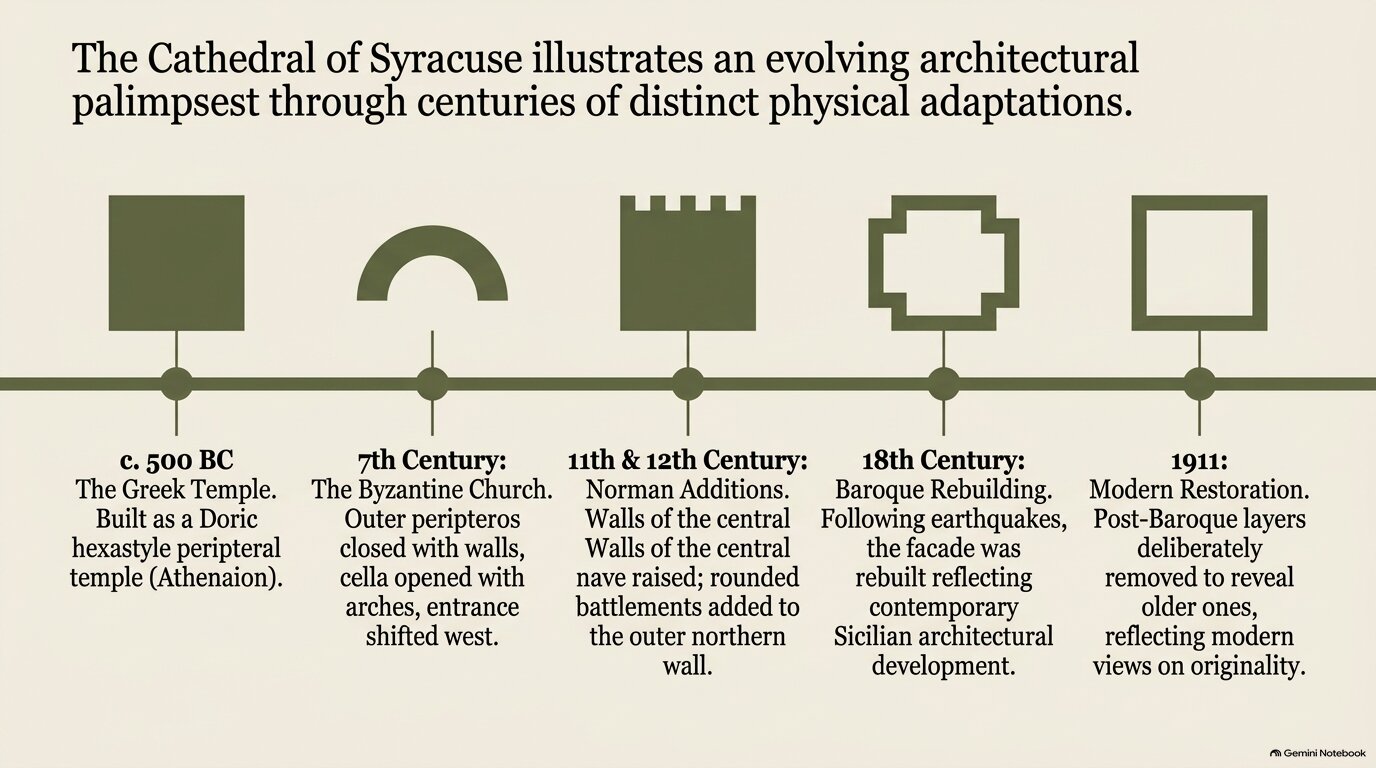
Generated slides are images (PNG, 1376×768), even in the .pptx download: seven pictures, no text boxes. The text is drawn, not typed.

Look at the third column: “Walls of the central Walls of the central nave raised”.

No spell-checker, no copy-paste, no search. You read every slide yourself, or nobody does.

Trick 6 · Rivedi: one slide, one instruction
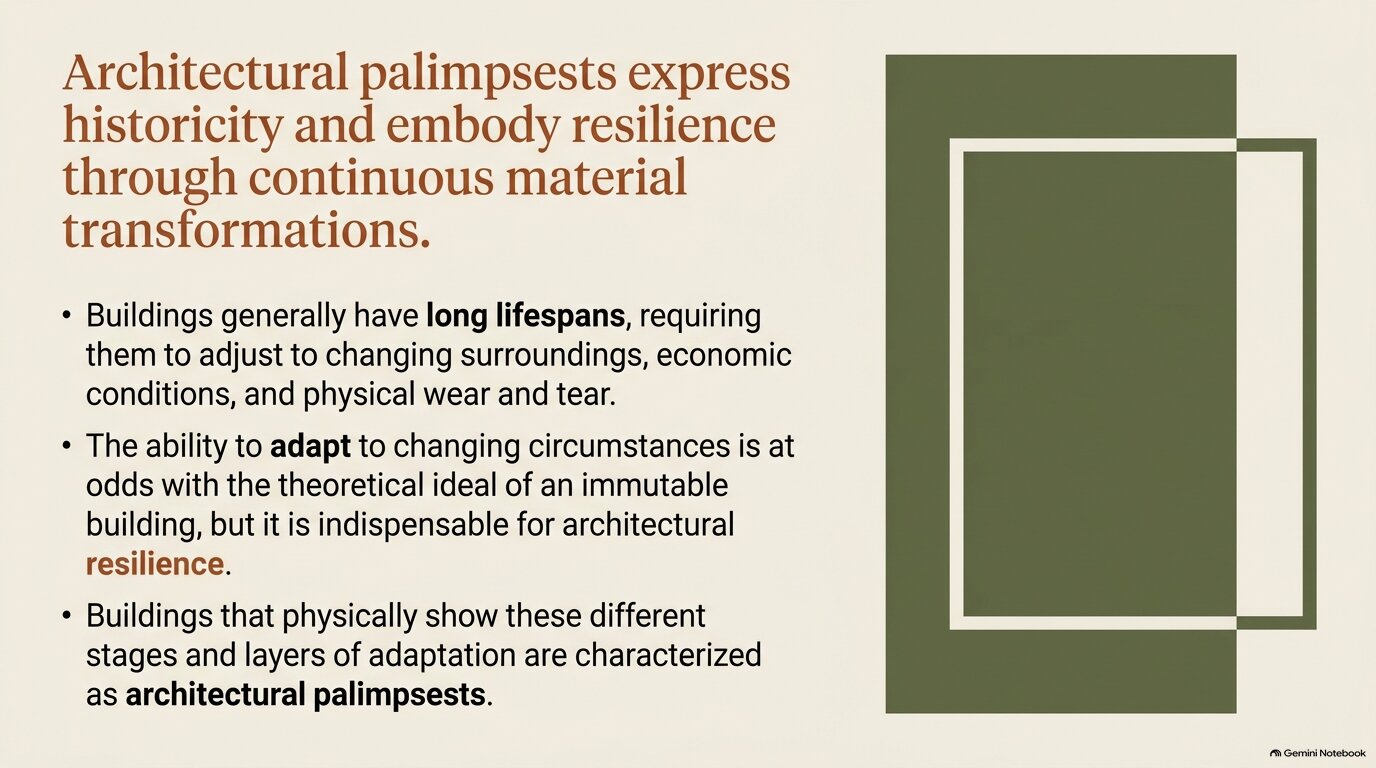
Before

After: “Shorten the title to at most 10 words, keeping its meaning. Keep layout, colours and text exactly as they are.”

Open the deck → Rivedi → click a slide → write one instruction → Genera presentazione rivista. It makes a copy (“(2)”), the original stays. About 2 minutes, and it does not use your daily three.

Rivedi fixes form. The chat fixes content.

Rivedi is good for

  • shorter title, dictated title
  • remove a bullet list, split a slide
  • a colour, a font, alignment
  • “keep layout and image”

Rivedi does not read the sources

  • not even new ones: a photo added later is ignored
  • it cannot check if a claim is true
  • it can make a wrong claim sound better
  • what is said is fixed in chat, with the citations open, then you regenerate

Part 4 Compare, keep, export

Put the decks side by side, and look for five things

Question Where it usually shows up
1 Is there a picture of a real place or person the tool made up? deck A
2 Is there a number or date you cannot find in the article? deck A
3 Is a title a topic instead of a claim? anywhere, even deck 1
4 Does a verb go stronger than the text: suggests → proves? deck A, sometimes deck 1
5 Did the theme hold on every slide, or only on the first? deck 2

Point 4 is the one that matters in research. Look at the verbs.

Keep the best slides, fix them one by one, export
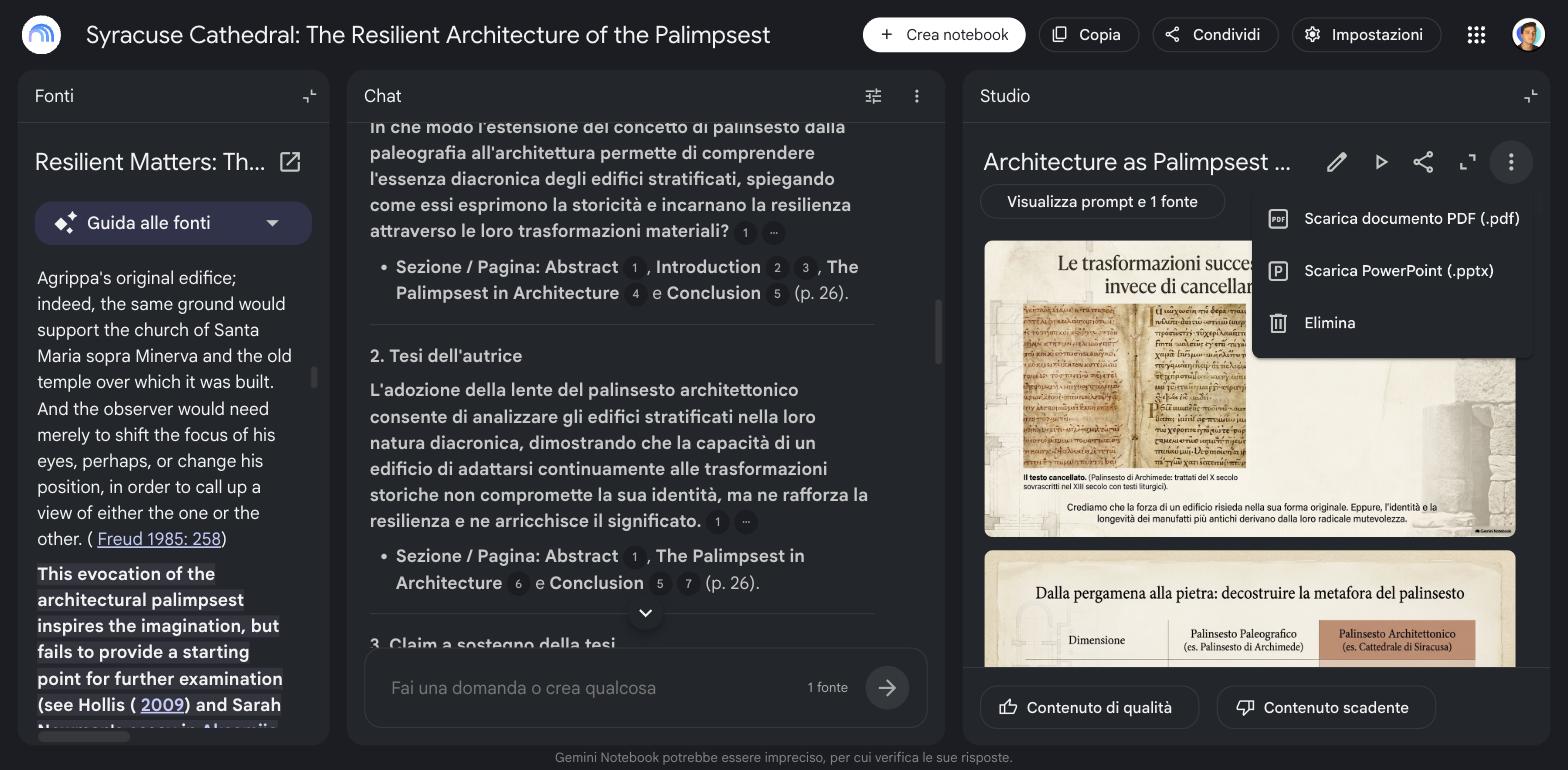
  1. Keep one deck, usually deck 2.
  2. Every slide that fails the five questions: Rivedi, one instruction per slide.
  3. A better slide in deck 1? Say it in Rivedi (“replace slide 4 with a timeline of…”). The tool cannot paste across decks.
  4. ⋮ → Download → PDF, every version you like: you cannot rerun one.

Then most people take it out to Google Slides

  1. ⋮ → Download → PowerPoint (.pptx)
  2. Google Drive → Open with Google Slides, or in your deck File → Import slides
  3. Add your logo, your notes, your own slides around it

Each slide arrives as one picture: no text boxes. You edit around it, not inside it.

The watermark. Every slide carries a small Gemini Notebook badge bottom right, and the images carry SynthID, an invisible watermark.

  • In Slides you can cover or crop the badge.
  • SynthID stays in the pixels. It is how a generated image can still be recognised.

Removing the badge is cosmetic. Declaring the use is not optional: see the last slide.

Three rules to take home

  1. The prompt is the theme file. Hex codes and a font, not adjectives. Constraints, not wishes: what you do not forbid, the tool does.
  2. Rivedi fixes form, the chat fixes content. Rivedi does not read the sources.
  3. Every deck is a draw. Export it, read every slide, keep the good ones. Versions are free, trust is not.

Materials, slides and example decks: niccolosalvini.github.io/unipg_ai_workshop. When you use it for real: declare it. “Slides drafted with Gemini Notebook from the author’s article, checked and edited by the author.” Generated images carry a visible and an invisible watermark.